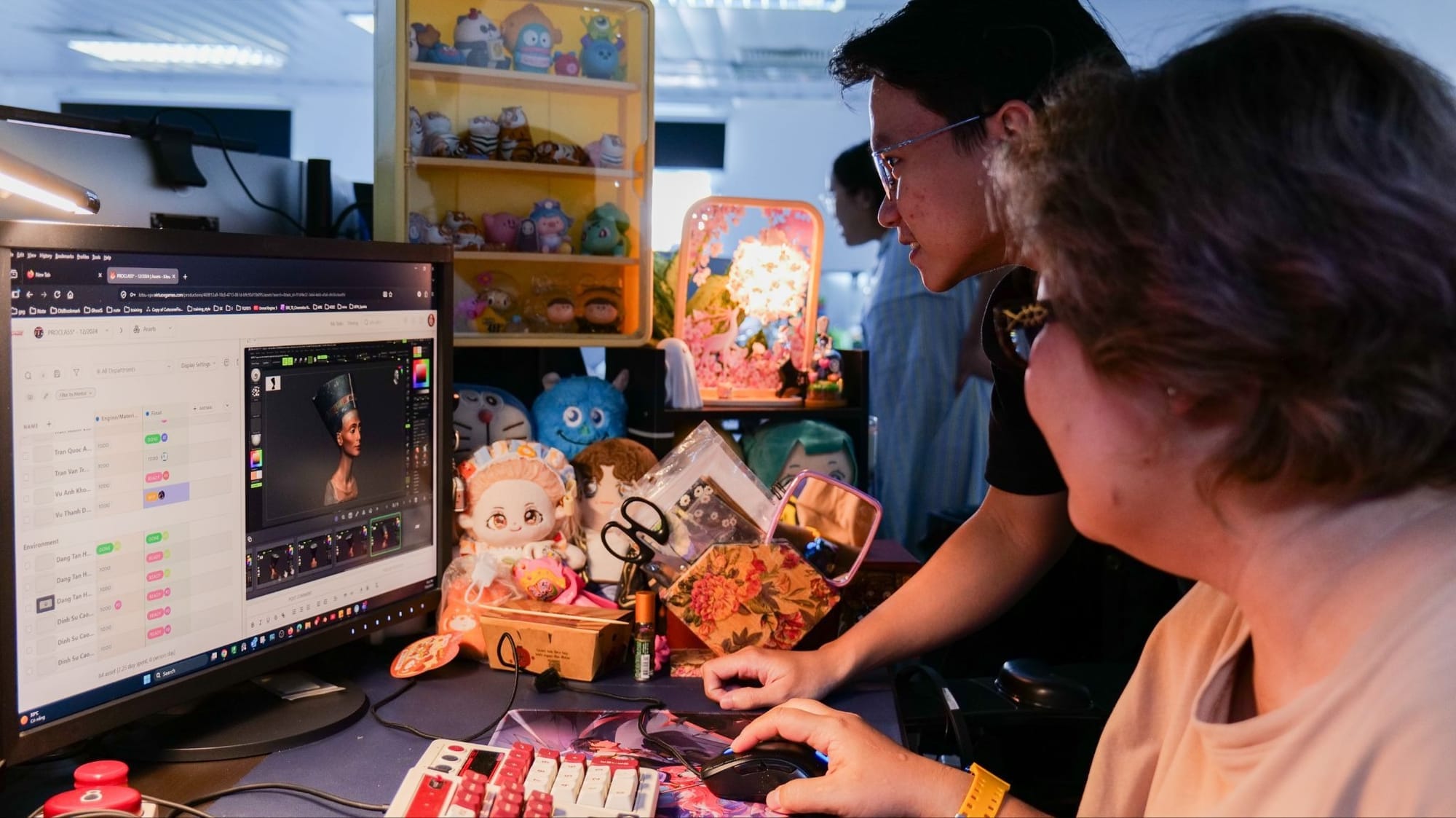

Getting a production off the ground shouldn't take more than a few hours. Too many studios burn a week wrestling with spreadsheets, email threads, and shared drives before a single frame gets animated. Kitsu was built specifically to cut that overhead.
Kitsu is a production tracking platform built by CGWire, designed for animation studios of any size. It handles everything from pre-production asset management to daily task scheduling, reviews, and progress reporting. Supervisors, artists, producers, and clients each get a view tailored to their role.
2D productions in particular put a lot of pressure on animation studios: a 22-minute TV episode can contain hundreds of shots, often with multiple artists working in parallel across all of them. Without a reliable system, quality drops fast.
This article walks through the full setup process: configuring your studio-level workflow, preparing your team, creating a production, and populating it with assets, episodes, sequences, and shots. By the end, your production will be live and ready for task scheduling.
1. Configure Your Studio Workflow
Before creating any production, Kitsu needs a global foundation to draw from. This is a one-time setup that all future productions will inherit, so it's worth getting right.
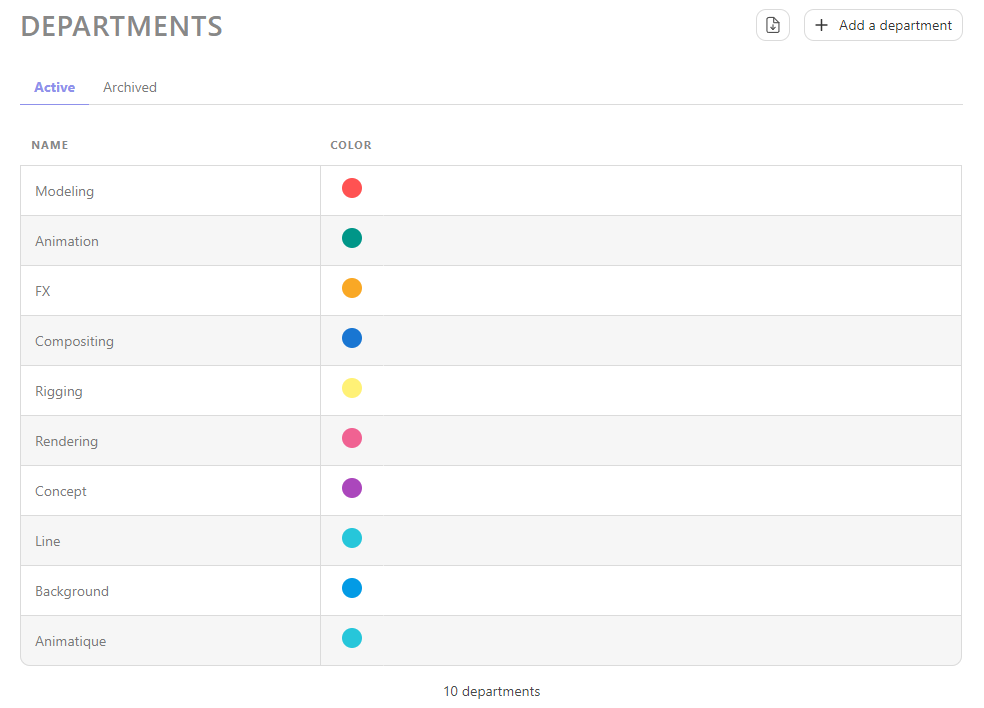
We start with departments. Departments in Kitsu filter what each artist and supervisor sees in their task queue. A Cleanup artist doesn't need to see Compositing tasks, and a Background painter doesn't need to see Animation retakes. Setting up a "Layout" department and linking your layout team to it means those artists see only what matters to them. Create one department per discipline in your studio: Animation, Cleanup, Compositing, Background, and so on.
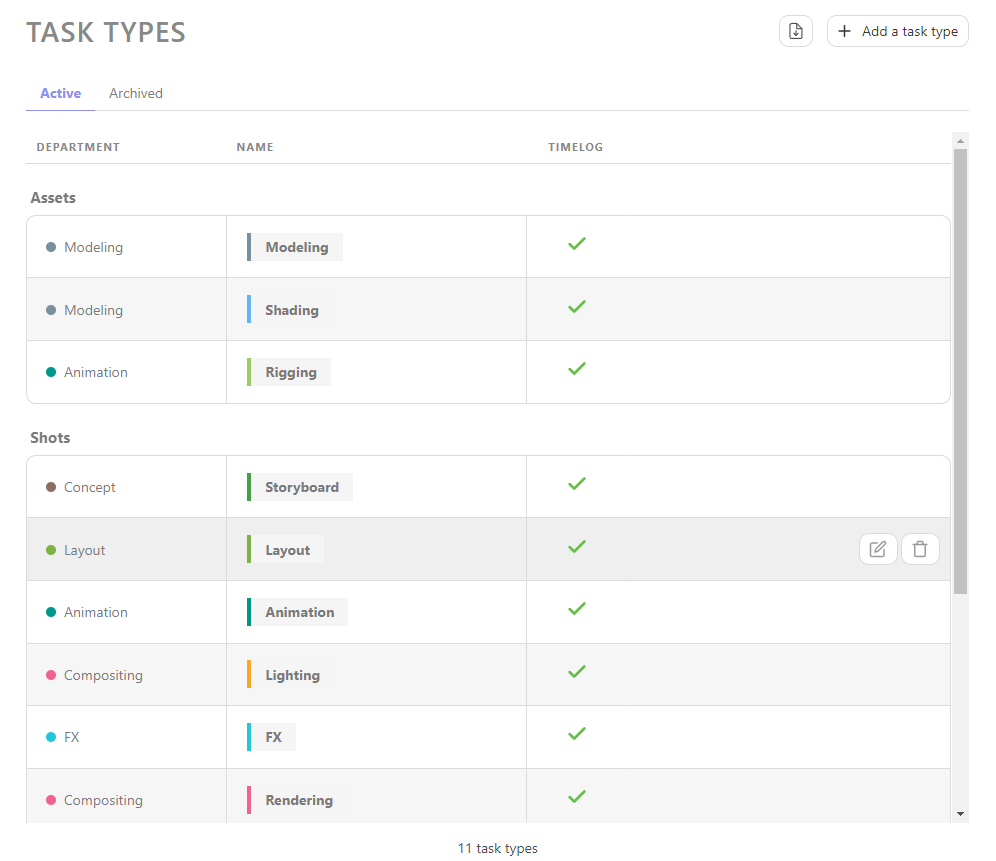
With departments in place, we set up task types to match our 2D pipeline: the production stages that every shot or asset will move through. A typical 2D setup includes Storyboard, Layout, Animation, Cleanup, Ink & Paint, Compositing, and Background. If the studio also produces FX animation, add an FX task type. These task types live in a global library, meaning you define them once and reuse them across every production.
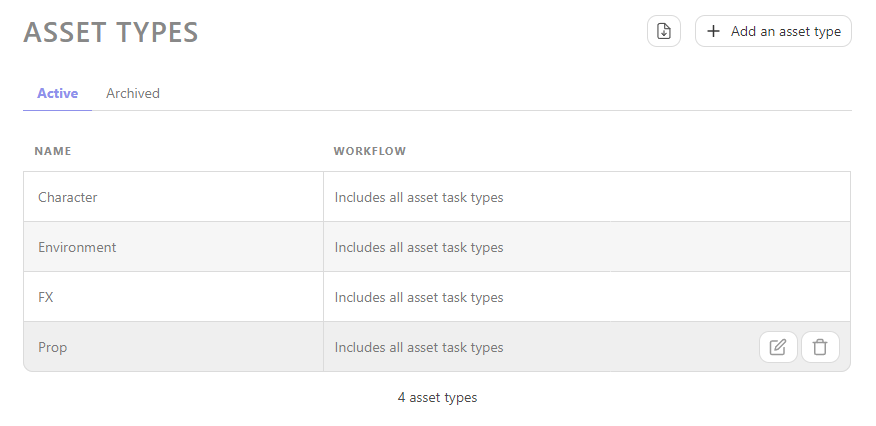
Asset types work the same way. Kitsu ships with defaults like Characters, Props, and Environments, and you can add custom types to match your specific needs. A studio producing a show with a lot of vehicle shots might add a Vehicles type, for example.
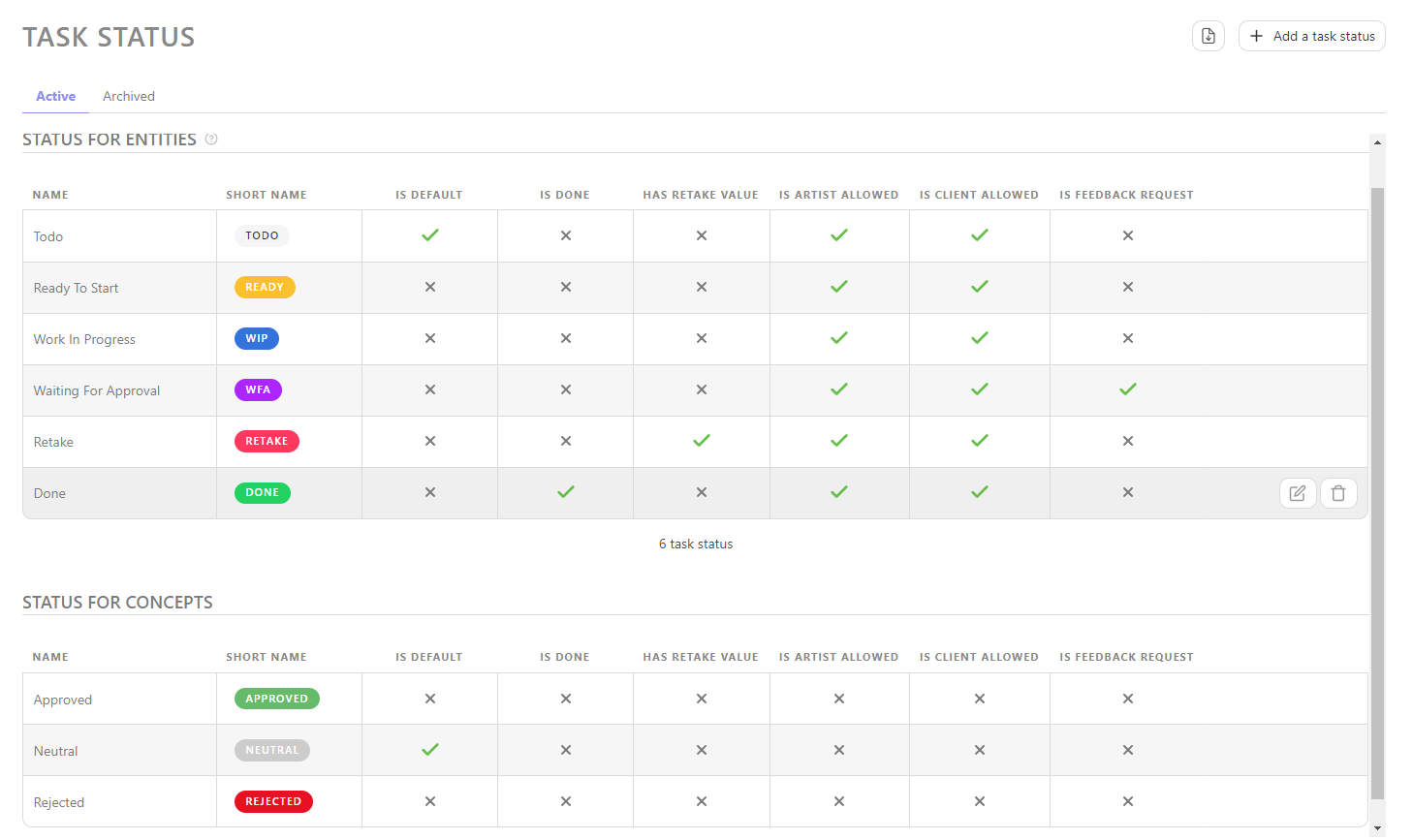
Finally, define your task statuses to reflect your approval workflow. By default: Todo, In Progress, Waiting for Approval, Approved, and Retake.
Now we can start inviting our people to collaborate.
2. Prepare Your Team
A workflow is useless if the wrong people can see or change the wrong things. For this, Kitsu uses a role-based permissions system.
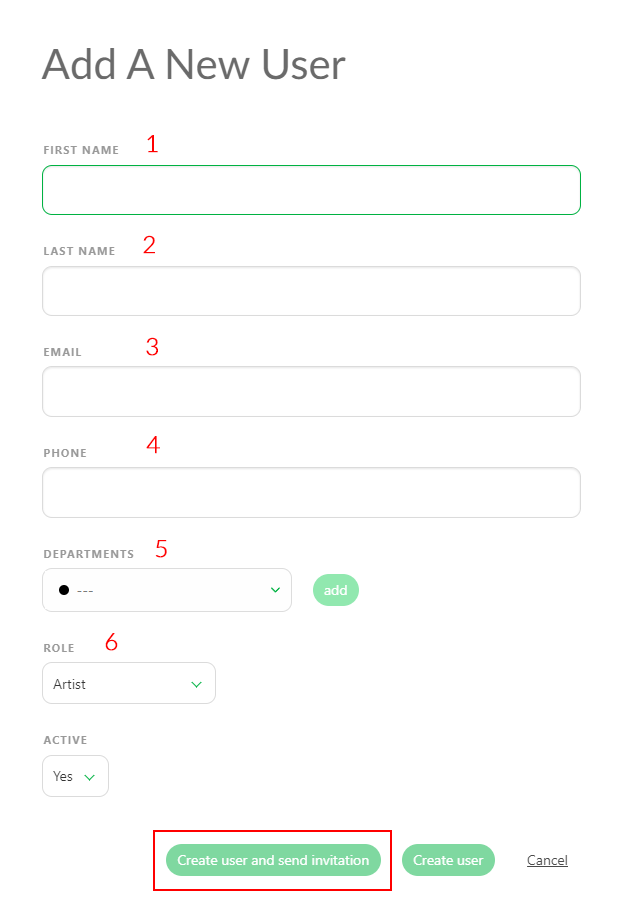
When inviting users by email in the People page, we can assign each user a role:
- Admins have full access to everything
- Supervisors manage their department's tasks and reviews
- Producers inherit supervisor permissions but also have read and write access to the productions they are assigned to
- Artists see only tasks in their production and can submit work for review
- Vendors have similar permissions to artists, except they can only see and edit tasks they are specifically assigned to
- Clients can view and leave feedback on published previews
For example, you could give your lead animator a Supervisor role, your compositors Artist roles, and share Client access with the broadcast partner who needs to approve final cuts.
We can also assign each user to one or more relevant departments. This is what powers the filtered task views mentioned earlier: an artist assigned to the Cleanup department will see Cleanup tasks across all productions they're part of instead of the full task board.
With the global studio setup done and the team in place, creating the production itself takes only a few minutes.
3. Create the 2D Production
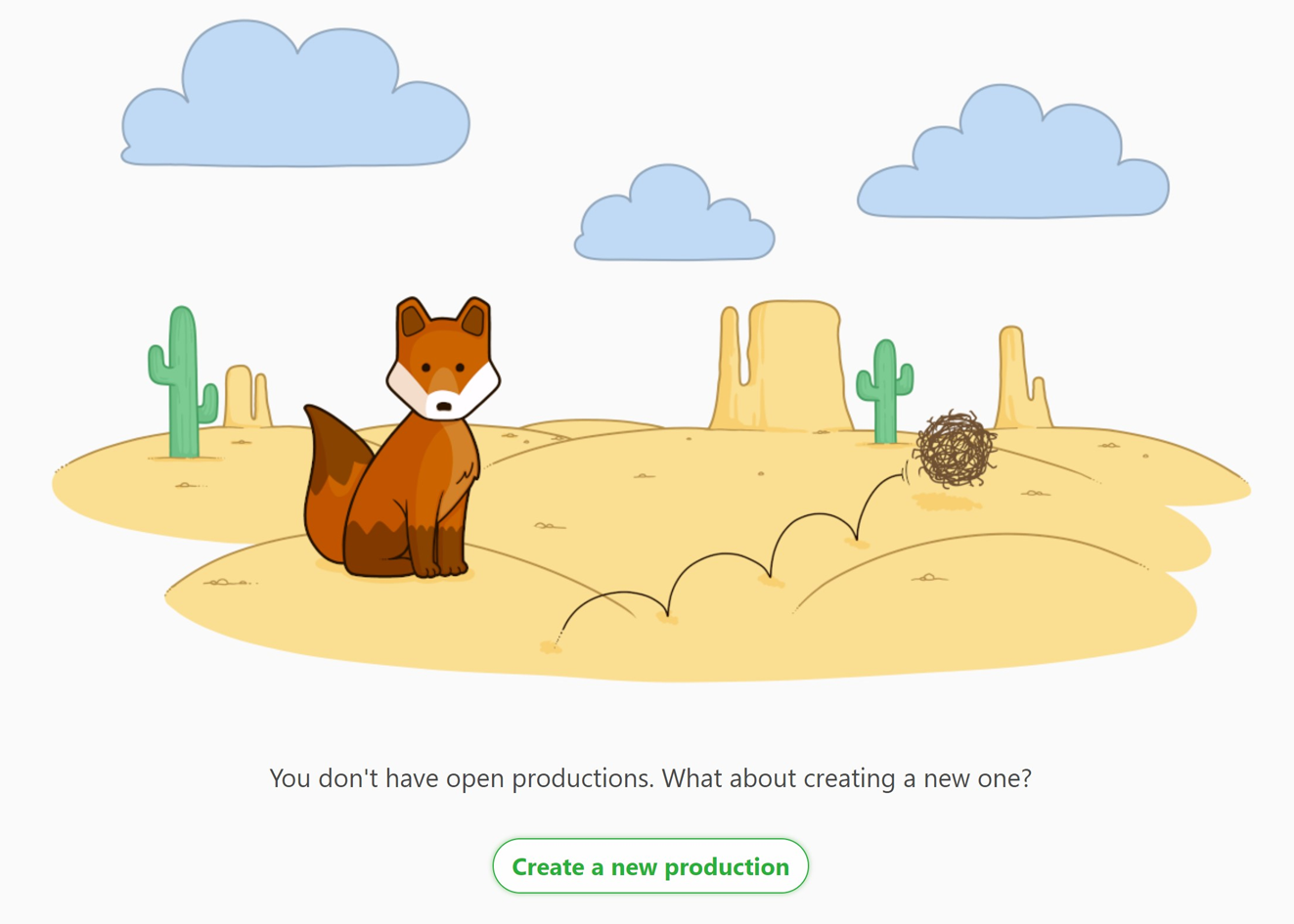
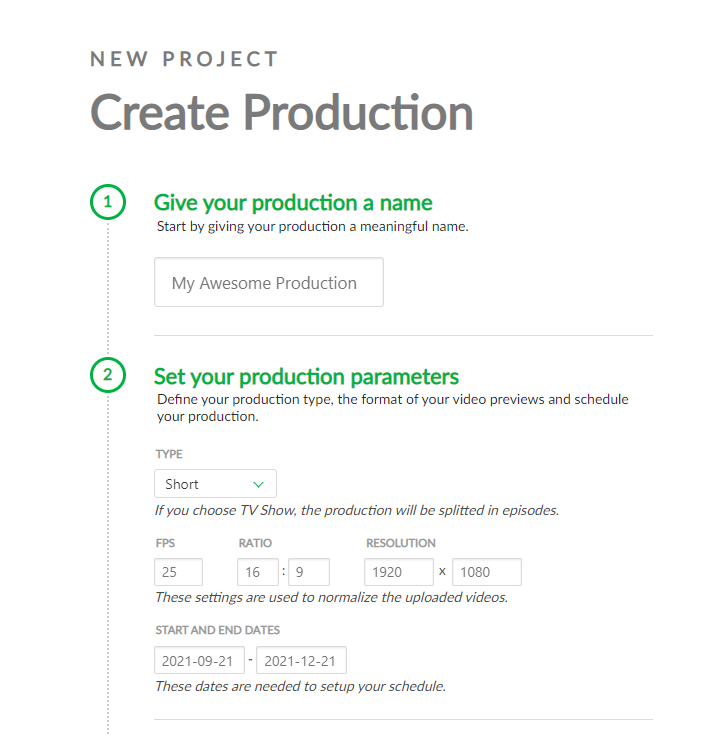
Click "Create a new production," give it a name, and choose the production type: Short, TV Show, or Feature Film. The production type affects how the episode and sequence structure gets organized. For a TV show, Kitsu expects an Episode > Sequence > Shot hierarchy. For a Short, it's just Sequence > Shot.
We select the 2D production style, which tells Kitsu which default task types and settings to offer.
We then fill in the technical settings: frame rate, aspect ratio, and resolution. Kitsu re-encodes uploaded video previews using these values, so a production set to 25fps at 1920x1080 will encode artist submissions accordingly. Getting these right at the start avoids mismatches that make review sessions messy.
The production's start and end dates feed into the scheduling tools later and give the system a timeline to work against.
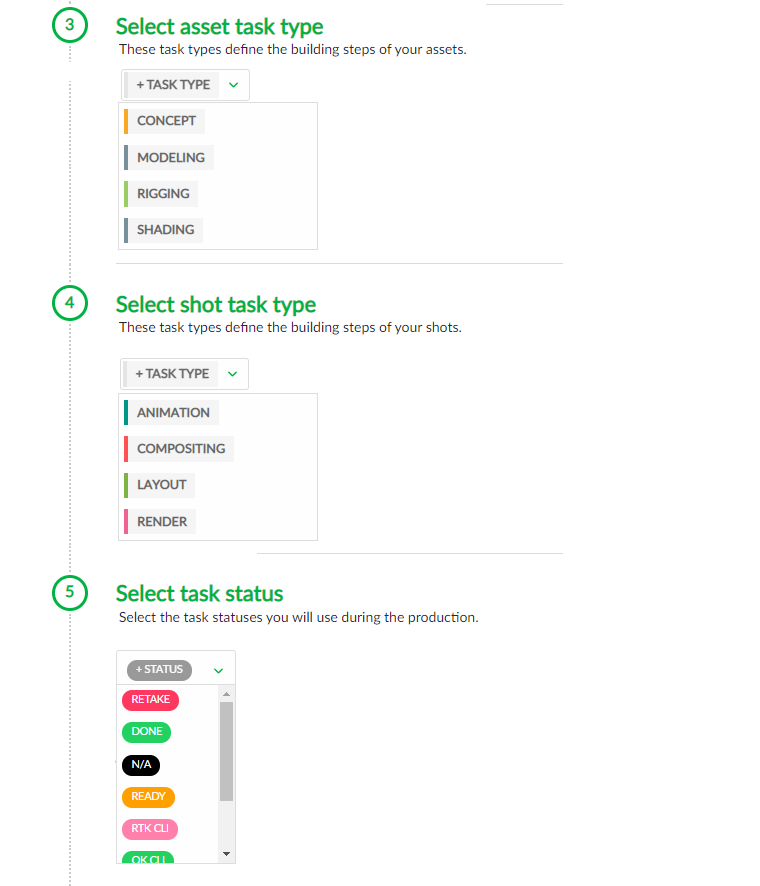
We now define the production workflow by pulling from the global library which asset task types apply to this production (Characters might go through Modeling, Rigging, and Texture; backgrounds might only need a Background Painting task), which shot task types are active, which task statuses are in use, and which asset types are relevant.
If the production already has a shot list or an asset list in a spreadsheet, we can import shots and assets via CSV. Kitsu's CSV import for shots accepts columns for episode, sequence, shot name, frame count, frame range, and even custom columns. Importing 200 shots at creation time is much more efficient than entering them one by one.
4. Create Assets
Assets are the reusable building blocks of the production: characters, props, backgrounds, and effects elements that appear across multiple shots.
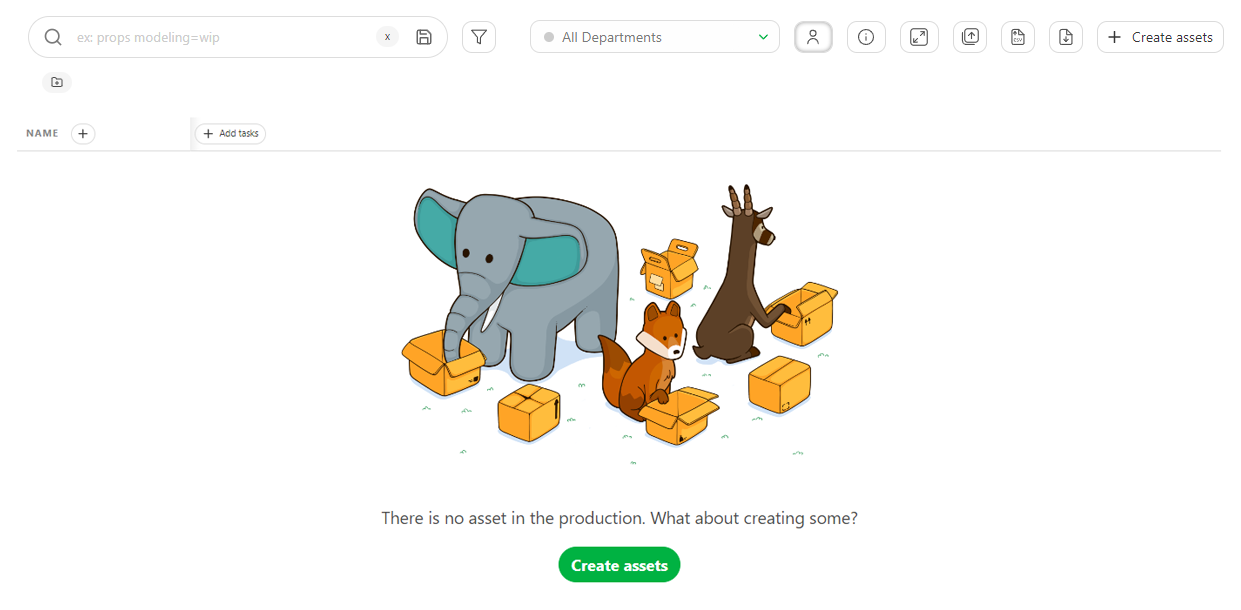
We add assets either manually through the asset page or in bulk via CSV import. Manual creation works well for a small cast, but CSV import is the right call when a character list already exists somewhere.
Each asset gets assigned a type (Character, Prop, Environment, FX) and immediately inherits the task types configured for assets in this production. For example, a new character asset for a TV show automatically get Concept, Modeling, Rigging, and Texture tasks created and set to Todo.
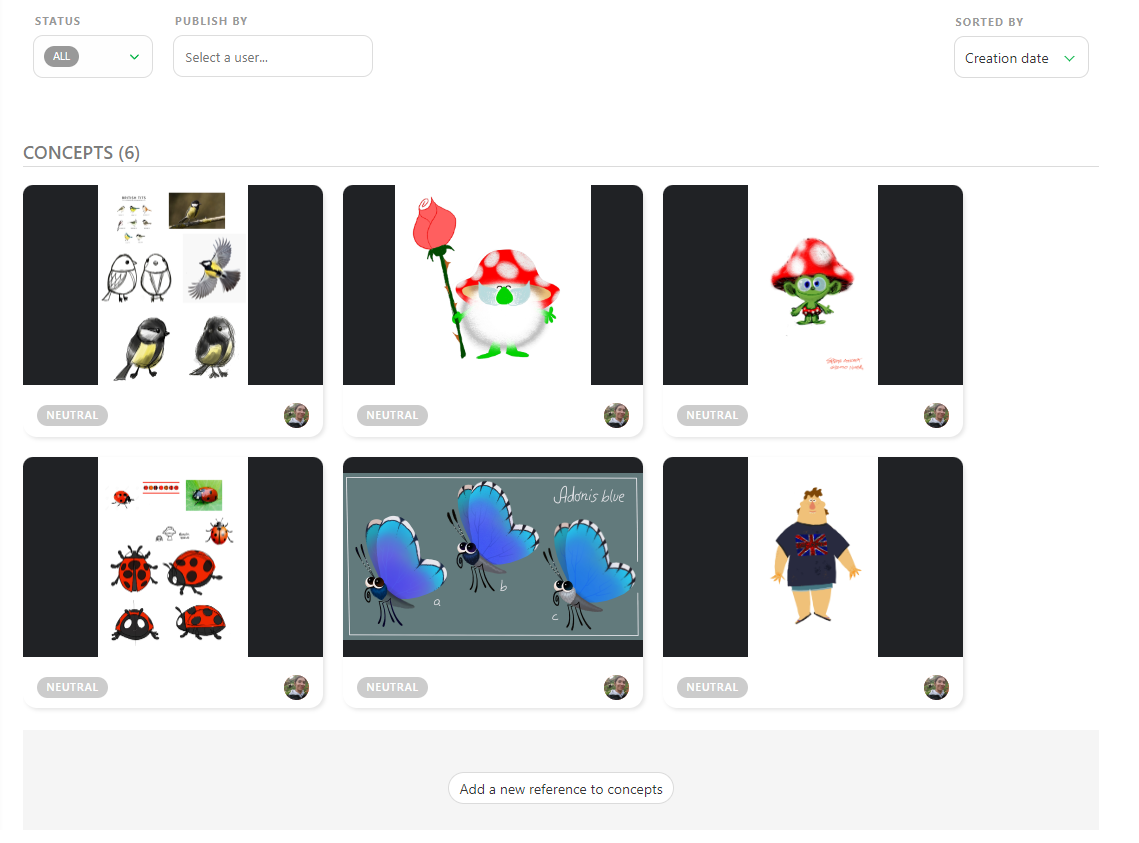
For pre-production work, Kitsu supports Concepts, which are production sketches or reference images or videos that can be linked directly to an asset. For example, a character concept approved in pre-production gets attached to the Character asset, so the modeler and rigger always have the reference at hand without digging through a shared drive folder. Creating a concept is as simple as uploading an image and linking it to the relevant asset.
Now we have assets to use, we can integrate them into our scenes.
5. Structure Your Production Into Episodes, Sequences, and Shots
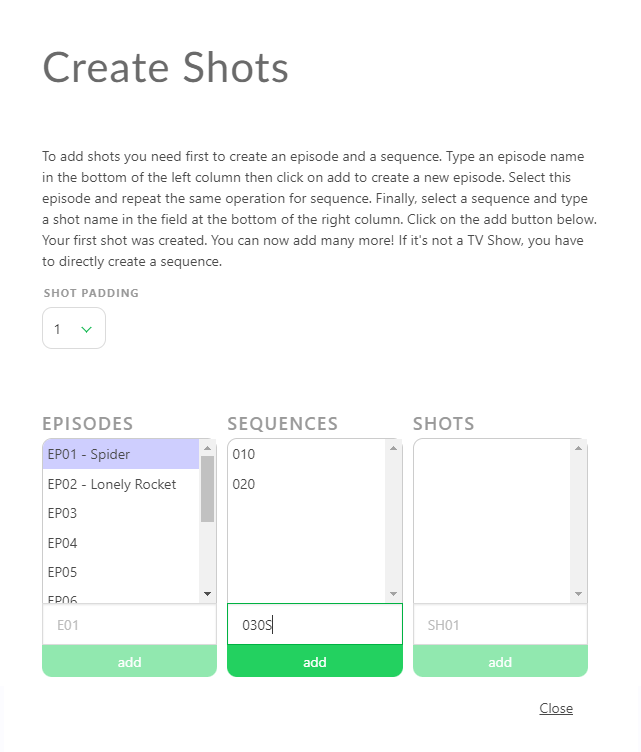
For a TV show, the shot structure starts with episodes, so we create one episode per broadcast episode, naming them consistently EP01, EP02, and so on.
Each episode contains sequences, which are named groups of consecutive shots that typically correspond to a scene or location. EP01 might contain SEQ010 (the opening scene), SEQ020 (the chase), and SEQ030 (the resolution). Creating sequences inside an episode establishes the hierarchy that keeps hundreds of shots navigable.
Shots can be created manually or imported from an EDL file. An EDL, or Edit Decision List, is a standard export from editing software like Avid or Premiere. Importing an EDL into Kitsu creates shots automatically with their corresponding timecodes and frame ranges more reliably than transcribing that information by hand.
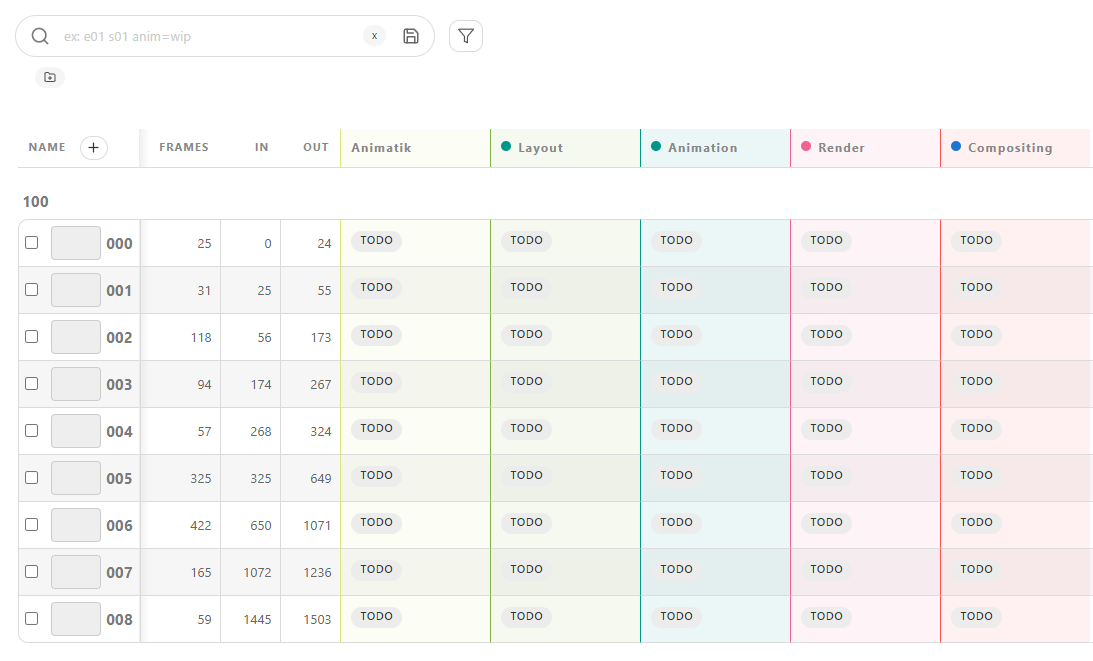
Once shots exist, we can add frame counts and frame ranges to each one. Frame counts drive workload estimates and scheduling. Frame ranges tell artists and compositors exactly which frames they're responsible for. A shot logged as 72 frames gives a supervisor a concrete number to use when assigning work and tracking progress.
Conclusion
And that's a wrap! Our production is now live and ready for task scheduling.
From global studio configuration to populating assets and shots, the setup process follows a linear sequence. Studio settings, task types, asset types, and task statuses are configured globally and reused. Individual productions mainly draw from that library.
The production is now ready for the next phase of work: casting (linking assets to the shots they appear in), scheduling (building a timeline that maps tasks to artists and deadlines), reviews (publishing previews for supervisor and client feedback), and progress reports (tracking completion rates and flagging delays before they compound).
For deeper guidance on any part of the pipeline, check out the official Kitsu documentation covering TV show, short, and feature film workflows in full, including the developer API for studios that want to integrate Kitsu with their own tools.