
Every project begins with good intentions. You start with a clean model.blend, organized folders, and the promise that this time you’ll keep things tidy.
But as deadlines tighten, the quiet entropy of production sets in. Before long, your project directory starts to resemble an archaeological dig site of panicked last-minute edits:
model.blend
model_v2.blend
model_v2b.blend
model_final.blend
model_final_really_final.blend
model_FINAL_v3.blend
You know how it happens: someone needs a quick change, another artist branches off a version "just in case," and soon no one is entirely certain which file is "the real one." Comments in chat threads contradict filenames, shots render from outdated versions, and the supervisor sighs deeply.
In an animation studio, these micro-chaos moments add up. That’s where a proper source of truth needs to enter the story.
For many teams, that source is Kitsu. And for Blender artists, the missing piece is an automated bridge that keeps files versioned, traceable, and aligned with the project’s production data.
So you decide to take control: you’re going to make Blender talk to Kitsu and build a versioning system that makes your pipeline feel like it finally has your back.
In this tutorial, we’ll create an addon that manages file revisions directly from Blender. You’ll be able to connect Blender to a Kitsu project, create and upload revisions of your 3D models, view all existing revisions, and pull older revisions back into Blender.
Workflow Overview
In a typical Kitsu-driven workflow, an artist opens a Blender scene, does their work, hits a milestone, and uploads a revision. Artists review, iterate, revise, and upload again. Kitsu keeps every step neatly.
But it wouldn't hurt if you could just upload or pull revisions with a click, right?
- Start in Blender - We open our working scene—modeling, shading, rigging, whatever the task at hand demands.
- Checkpoint the work - When we hit a milestone ("blocking complete," "ready for review"), we create a new revision in Kitsu.
- Review the history - Kitsu stores all revisions, giving supervisors a clear timeline and letting you compare versions without digging through files.
- Pull new changes - When we need a different version, we can just click to pull in an asset in our current workspace.
This is a very basic workflow, so we are bound to run into problems like how to handle conflict resolution (what if two artists work on the same shot and create a new revision each, how do we handle this?), but it's good enough to give us a functional addon we can improve later on to fit our animation pipeline needs.
You can find the complete source code for the example integration showcased in this guide on our GitHub:
🔗 https://github.com/cgwire/blender-kitsu-versioning-addon
1. Populating The Kitsu Dashboard
Kitsu’s web interface is designed so producers, coordinators, or leads can quickly set up the structure of a project. Before Blender artists can publish revisions, we need to populate our production with work-in-progress assets. In the Kitsu Docker instance for local development:
- Log into the Kitsu dashboard.
- In the main navigation bar, go to Productions.
- Click "Create production" (usually top-right corner).
- Fill in the production details
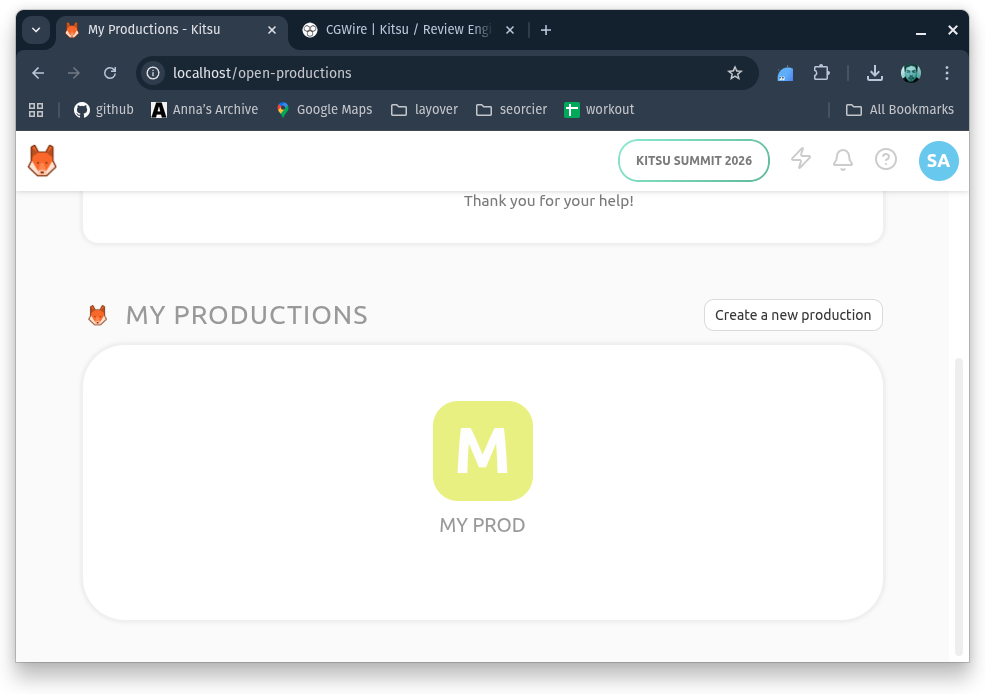
The new production will appear in the list, and you can open it to begin adding assets.
Assets are the building blocks of your project: characters, props, environments, vehicles... anything that needs production tracking.
- Go to Productions → Your Production Name.
- Switch to the Assets tab within the production.
- Click "Create Asset".
- Enter an Asset Name (e.g., "RobotHead") and Asset Type (Character, Prop, Set, etc.)
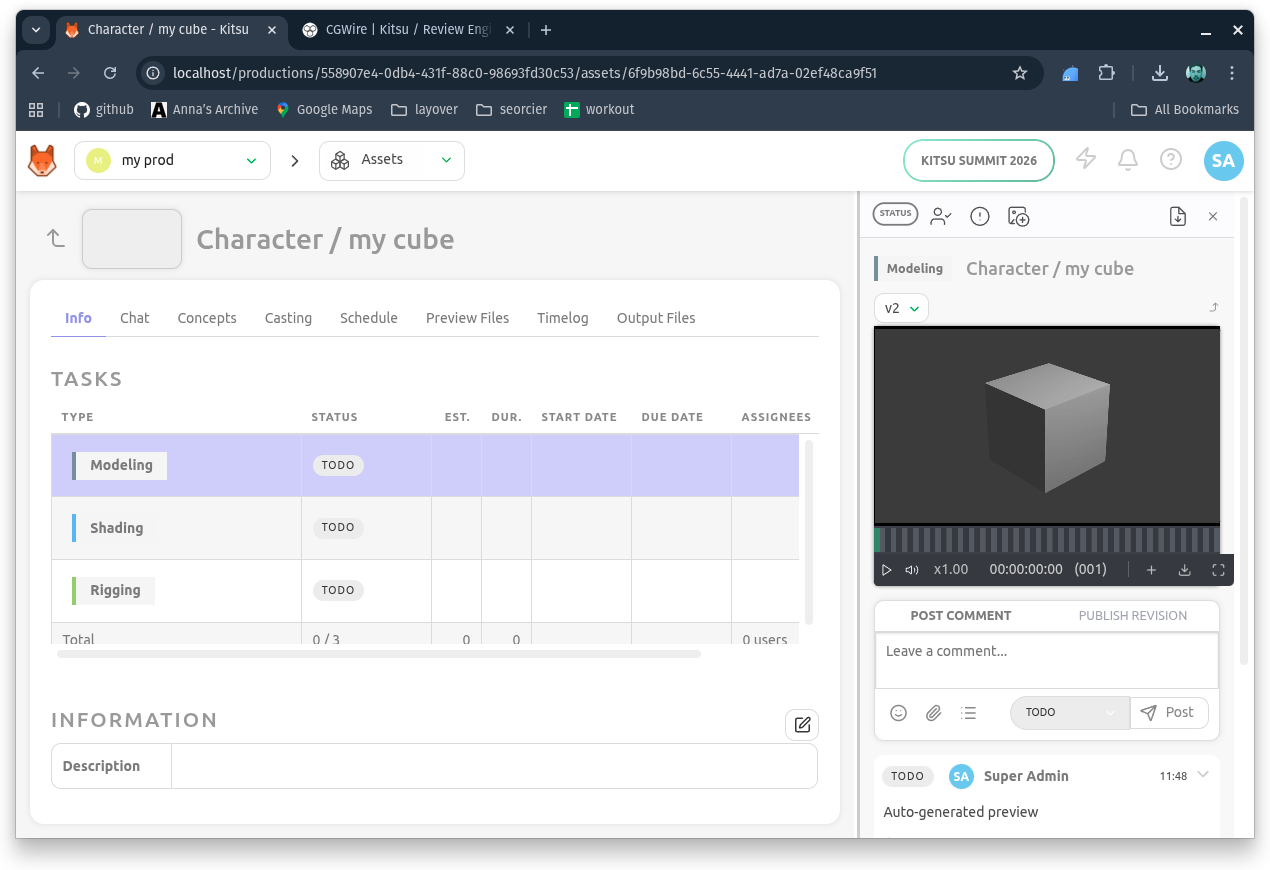
Your asset now exists and has 3 tasks assigned to it.
Tasks define the workflow steps (Modeling, Shading, Rigging, etc.) that artists will perform on each asset.
We now have everything we need to test our addon.
2. Linking the Current Blender Project to a Kitsu Task
We start with a minimal addon declaration that defines the UI location, loads gazu, and prepares the data we’ll expose in dropdown menus:
bl_info = {
    "name": "Model Versioning (Production/Task/Asset/Revisions)",
    "author": "cgwire",
    "version": (1, 0, 0),
    "blender": (2, 80, 0),
    "location": "View3D > Sidebar > ModelVersioning",
    "description": "Browse productions, tasks, assets, and manage revisions (list/create/load)",
    "category": "3D View",
}

import sys

sys.path.append("~/.local/lib/python3.11/site-packages")

import os
import tempfile

import bpy
import gazu
from bpy.props import EnumProperty, PointerProperty
from bpy.types import Operator, Panel, PropertyGroup
Note that sys.path.append("~/.local/lib/python3.11/site-packages") allows us to use our local Python installation to access external packages like gazu. By default, Blender runs its own Python environment, so installing packages can be cumbersome. To solve this, we just tell Blender to have a look at our local modules. Update this path accordingly to match your system configuration.
Before we can automate versioning, Blender needs to know where in Kitsu the current model belongs. That means identifying the project, the asset, the task, and eventually the revisions associated with it.
The first step is simple: authenticate with Kitsu, retrieve available productions, and let the artist pick the context directly from the Sidebar UI.
Once the addon loads, we authenticate and point the addon at the Kitsu API host:
gazu.set_host("<http://localhost/api>")
user = gazu.log_in("admin@example.com", "mysecretpassword")

temp_dir_path = tempfile.gettempdir()
This establishes the session we’ll use to browse productions, find tasks, and eventually create revisions.
From here, we can begin exposing the production structure. With helper functions for project, asset, task, and revision lookup, we populate each dropdown dynamically:
def find_project(name):
    return gazu.project.get_project_by_name(name)

def find_asset(project, name):
    return gazu.asset.get_asset_by_name(project, name)

def find_task(asset, type_id):
    return gazu.task.get_task_by_name(asset, type_id, "main")
Each EnumProperty callback pulls fresh data from Kitsu:
def enum_projects(self, context):
    items = []
    projects = gazu.project.all_projects()
    for p in projects:
        items.append((p["name"], p["name"], ""))
    if not items:
        items.append(("NONE", "--- no productions ---", ""))
    return items
Assets, tasks, and revisions follow the same pattern:
def enum_assets(self, context):
    project = find_project(context.scene.mv_state.project)
    items = []
    if project:
        assets = gazu.asset.all_assets_for_project(project)
        for t in assets:
            items.append((t["name"], t["name"], ""))
    if not items:
        items.append(("NONE", "--- no tasks ---", ""))
    return items

def enum_tasks(self, context):
    project = find_project(context.scene.mv_state.project)
    asset = find_asset(project, context.scene.mv_state.asset)
    items = []
    if asset:
        tasks = gazu.task.all_tasks_for_asset(asset)
        for t in tasks:
            items.append((t["task_type_id"], t["task_type_name"], ""))
    if not items:
        items.append(("NONE", "--- no tasks ---", ""))
    return items

def enum_revisions(self, context):
    project = find_project(context.scene.mv_state.project)
    asset = find_asset(project, context.scene.mv_state.asset)
    task = find_task(asset, context.scene.mv_state.task)
    items = []
    if task:
        revisions = gazu.files.get_all_preview_files_for_task(task)
        for r in revisions:
            items.append((str(r["revision"]), str(r["revision"]), ""))
    if not items:
        items.append(("NONE", "--- no revisions ---", ""))
    return items
Finally, we store all UI selections in a single state object:
class MV_State(PropertyGroup):
    project: EnumProperty(
        name="Project", description="Select project", items=enum_projects
    )
    asset: EnumProperty(name="Asset", description="Select asset", items=enum_assets)
    task: EnumProperty(name="Task", description="Select task", items=enum_tasks)
    revision: EnumProperty(
        name="Revision", description="Select revision", items=enum_revisions
    )
This is the foundation of our pipeline integration: Blender now knows how to browse Kitsu and bind itself to the exact task the artist is working on. From here, we can start working on the revision lifecycle.
3. Creating a "New Revision" Button
We can start automating the part artists interact with most: creating new revisions. In a typical manual workflow, you’d export your file and upload it in Kitsu to the correct task. Our addon will streamline this into a single button press inside Blender.
Kitsu handles new revisions through publish_preview(). This call sends both the file and metadata:
temp_file_path = os.path.join(temp_dir_path, "new_version.glb")

bpy.ops.export_scene.gltf(filepath=temp_file_path, export_format="GLB")

(comment, preview_file) = gazu.task.publish_preview(
    task,
    task_status,
    revision=new_revision,
    comment="increment revision",
    preview_file_path=temp_file_path,
)

os.remove(temp_file_path)
In our addon, we’ll trigger this from a button in the Sidebar.
The operator performs three main steps: grab the user’s selections from the addon's state, compute the next revision number, and upload the exported file as the new revision:
class MV_OT_create_revision(Operator):
    bl_idname = "mv.create_revision"
    bl_label = "Create Revision"

    def invoke(self, context, event):
        wm = context.window_manager
        return wm.invoke_props_dialog(self, width=400)

    def execute(self, context):
        project = find_project(context.scene.mv_state.project)
        asset = find_asset(project, context.scene.mv_state.asset)
        task = find_task(asset, context.scene.mv_state.task)
        revision = context.scene.mv_state.revision
        new_revision = int(revision) + 1

        task_status = gazu.task.get_task_status_by_name("todo")

        temp_file_path = os.path.join(temp_dir_path, "new_version.glb")

        bpy.ops.export_scene.gltf(filepath=temp_file_path, export_format="GLB")

        (comment, preview_file) = gazu.task.publish_preview(
            task,
            task_status,
            revision=new_revision,
            comment="increment revision",
            preview_file_path=temp_file_path,
        )

        os.remove(temp_file_path)

        self.report({"INFO"}, "Revision created")
        return {"FINISHED"}
4. Pulling a Revision into Blender
Versioning isn’t just about publishing your work, it's also about being able to go back. Whether you’re reviewing earlier stages, comparing topology, or recovering a detail from a previous iteration, you need a quick, reliable way to load new and older revisions into Blender.
Once a task is selected, pulling a revision from Kitsu becomes a simple two-step operation: download the preview file associated with the selected revision, and import it into Blender.
After fetching all preview files for the current task, we can target the revision by index and bring the asset directly into Blender:
temp_file_path = os.path.join(temp_dir_path, "new_version.glb")

preview_file = preview_files[int(revision) - 1]
gazu.files.download_preview_file(preview_file, temp_file_path)
bpy.ops.import_scene.gltf(filepath=temp_file_path)

os.remove(temp_file_path)
This gives us a consistent way to retrieve assets exactly as they were at that point in production.
We encapsulate this workflow inside an operator that mirrors the structure of the Create Revision button:
class MV_OT_load_revision(Operator):
    bl_idname = "mv.load_revision"
    bl_label = "Load Revision"

    def execute(self, context):
        project = find_project(context.scene.mv_state.project)
        asset = find_asset(project, context.scene.mv_state.asset)
        task = find_task(asset, context.scene.mv_state.task)
        revision = context.scene.mv_state.revision
        preview_files = gazu.files.get_all_preview_files_for_task(task)

        temp_file_path = os.path.join(temp_dir_path, "new_version.glb")

        preview_file = preview_files[int(revision) - 1]
        gazu.files.download_preview_file(preview_file, temp_file_path)
        bpy.ops.import_scene.gltf(filepath=temp_file_path)

        os.remove(temp_file_path)

        self.report({"INFO"}, "Opened Revision")
        return {"FINISHED"}
This operator makes it trivial for artists to browse and load any version stored in Kitsu without leaving Blender.
5. Registering The Addon
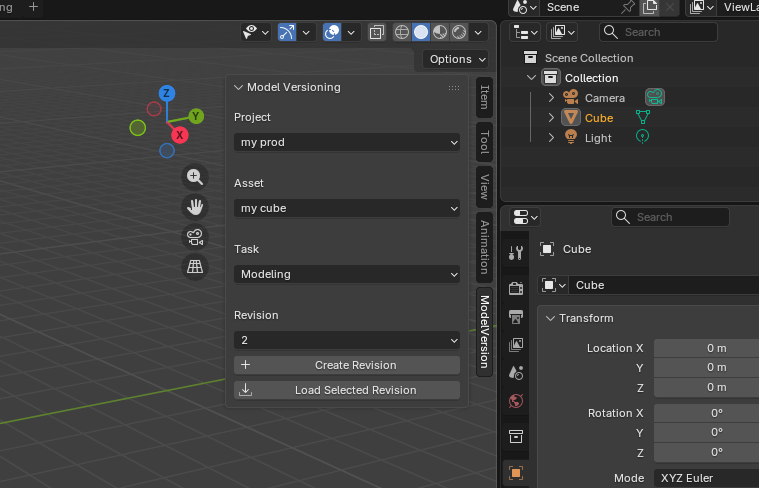
The panel now ties the whole revision workflow together:
- Select the project
- Choose the asset
- Pick the task
- Browse revisions
- Create or load versions with a single click
class MV_PT_panel(Panel):
    bl_label = "Model Versioning"
    bl_idname = "MV_PT_panel"
    bl_space_type = "VIEW_3D"
    bl_region_type = "UI"
    bl_category = "ModelVersion"

    def draw(self, context):
        layout = self.layout
        scene = context.scene
        mv = scene.mv_state

        layout.label(text="Project")
        layout.prop(mv, "project", text="")
        layout.separator()

        layout.label(text="Asset")
        layout.prop(mv, "asset", text="")
        layout.separator()

        layout.label(text="Task")
        layout.prop(mv, "task", text="")
        layout.separator()

        layout.label(text="Revision")
        layout.prop(mv, "revision", text="")
        layout.separator()

        row = layout.row(align=True)
        row.operator("mv.create_revision", text="Create Revision", icon="ADD")

        layout.operator(
            "mv.load_revision", text="Load Selected Revision", icon="IMPORT"
        )
Finally, we register the operators, panel, and state so Blender knows how to construct the UI:
classes = (
    MV_State,
    MV_OT_create_revision,
    MV_OT_load_revision,
    MV_PT_panel,
)

def register():
    for c in classes:
        bpy.utils.register_class(c)
    bpy.types.Scene.mv_state = PointerProperty(type=MV_State)

def unregister():
    for c in reversed(classes):
        bpy.utils.unregister_class(c)
    if hasattr(bpy.types.Scene, "mv_state"):
        del bpy.types.Scene.mv_state

if __name__ == "__main__":
    register()
At this point, the model versioning workflow is fully bidirectional: you can publish new revisions from Blender and retrieve earlier ones instantly.
Conclusion
With just a handful of Blender API operators and the convenience of the Gazu SDK, we’ve built a practical (yet basic) versioning workflow that lives directly inside Blender and stays in sync with Kitsu. Artists can link their Blender scene to a Kitsu project, asset, and task, create new revisions with a single button press, browse the full revision history for any task, and pull older versions straight into Blender whenever they need to compare or recover work.
This workflow is only the beginning. From here, you could expand the addon with automated exports, thumbnail or turntable renders, support for multiple output formats, supervisor review tools, or even hooks into a render farm.
To get you started, make sure to clone our Github repository for this versioning addon and try it out yourself!