One of the most common topics that comes up when visiting studios or discussing pipeline design with CG artists is file hierarchy. While folder structures may seem straightforward, creating a scalable and maintainable hierarchy requires careful planning.
We've covered file hierarchy design in a previous article, so instead of discussing theory, this tutorial focuses on implementation. You'll learn how to use the Kitsu API and its Python client, Gazu, to automatically generate a production structure, create tasks, and build a complete file tree.
Let's get started with our first pipeline automation tutorial.
Step 1: Configure the Kitsu API
Before running the examples in this tutorial, make sure you have a working Kitsu instance running on a server that is accessible from your local network.
If you want to get started quickly, you can launch the server using Docker:
docker build -t cgwire .

docker run \
    -ti --rm \
    -p 80:80 \
    --name cgwire \
    -v zou-storage:/var/lib/postgresql \
    -v zou-storage:/opt/zou/zou/thumbnails \
    cgwire
For the rest of this tutorial, we'll assume the API is available at:
http://localhost/api
Install the Python Client
Install the Gazu Python client:
pip install gazu
Connect to the API
Create a new file called build_file_tree.py and add the following code:
import gazu

gazu.set_host("http://localhost/api")
gazu.log_in("admin@example.com", "default")
At this point, your script is connected to the Kitsu API and ready to create production data.
Step 2: Create Assets and Shots
Next, create a sample production containing a few assets and shots.
new_prod = gazu.project.new_project("Super Production")

characters = gazu.asset.new_asset_type("Characters")
props = gazu.asset.new_asset_type("Props")

rabbit = gazu.asset.new_asset(new_prod, characters, "Rabbit")
monkey = gazu.asset.new_asset(new_prod, characters, "Monkey")
chair = gazu.asset.new_asset(new_prod, props, "Chair")

episode = gazu.shot.new_episode(new_prod, "E01")
sequence = gazu.shot.new_sequence(new_prod, episode, "SE01")

gazu.shot.new_shot(new_prod, sequence, "SH01")
gazu.shot.new_shot(new_prod, sequence, "SH02")
gazu.shot.new_shot(new_prod, sequence, "SH03")
This script creates:
- One project: Super Production
- Three assets: Rabbit, Monkey, and Chair
- One episode and sequence
- Three shots: SH01, SH02, and SH03
Step 3: Create Tasks
Once the production structure is in place, create the tasks that artists will work on.
modeling = gazu.task.get_task_type_by_name("Modeling")
setup = gazu.task.get_task_type_by_name("Setup")
animation = gazu.task.get_task_type_by_name("Animation")
render = gazu.task.get_task_type_by_name("Render")

for asset in gazu.asset.all_assets_for_project(new_prod):
    gazu.task.new_task(asset, modeling)
    gazu.task.new_task(asset, setup)

for shot in gazu.shot.all_shots_for_project(new_prod):
    gazu.task.new_task(shot, animation)
    gazu.task.new_task(shot, render)
This creates:
Asset Tasks
- Modeling
- Setup
Shot Tasks
- Animation
- Render
Each asset and shot now has the task structure needed for production work.
Step 4: Generate the File Hierarchy
With projects, assets, shots, and tasks created, you can generate the corresponding folder structure.
import os

gazu.files.set_project_file_tree(new_prod, "simple")

for asset in gazu.asset.all_assets_for_project(new_prod):
    for task in gazu.task.all_tasks_for_asset(asset):
        path = os.path.dirname(
            gazu.files.build_working_file_path(task)
        )[1:]
        os.makedirs(path, exist_ok=True)

for shot in gazu.shot.all_shots_for_project(new_prod):
    for task in gazu.task.all_tasks_for_shot(shot):
        path = os.path.dirname(
            gazu.files.build_working_file_path(task)
        )[1:]
        os.makedirs(path, exist_ok=True)
What This Script Does
- Applies the
simplefile-tree template - Generates file paths for every task
- Creates the required directories automatically
- Ensures the structure is consistent across the entire production
Resulting Folder Structure
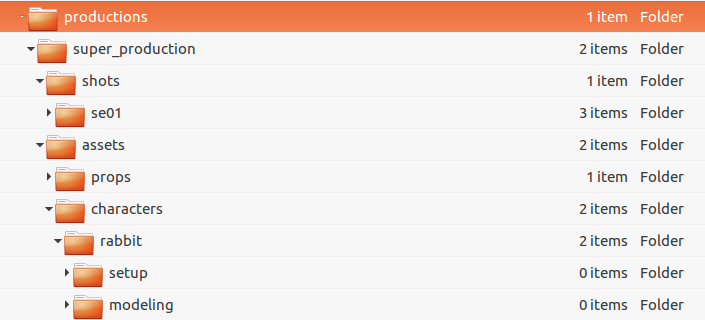
Running the script produces the following directory tree:
my_root_folder/
└── productions
    └── super_production
        ├── assets
        │   ├── characters
        │   │   ├── monkey
        │   │   │   ├── modeling
        │   │   │   └── setup
        │   │   └── rabbit
        │   │       ├── modeling
        │   │       └── setup
        │   └── props
        │       └── chair
        │           ├── modeling
        │           └── setup
        └── shots
            └── se01
                ├── sh01
                │   ├── animation
                │   └── render
                ├── sh02
                │   ├── animation
                │   └── render
                └── sh03
                    ├── animation
                    └── render
Customize the Folder Structure
The generated hierarchy is controlled by a template. You can customize it to match your studio's pipeline requirements.
Example template:
{
  "working": {
    "mountpoint": "/my_root_folder",
    "root": "productions",
    "folder_path": {
      "shot": "<Project>/shots/<Sequence>/<Shot>/<TaskType>",
      "asset": "<Project>/assets/<AssetType>/<Asset>/<TaskType>"
    }
  }
}
By modifying these paths, you can adapt the hierarchy to any production workflow without changing your automation scripts.
Why Automate File Hierarchy Creation?
Manually creating folders is manageable for a small test project, but it quickly becomes error-prone as productions grow.
Using the Kitsu API allows you to:
- Create projects programmatically
- Standardize folder structures across teams
- Eliminate manual setup errors
- Scale to thousands of assets and shots
- Keep pipeline configuration centralized and maintainable
With just a few lines of Python, you can generate both production data and the corresponding file structure, giving artists a consistent environment from day one.
If you're interested in CG pipelines, production management, and workflow automation, make sure to explore our other articles!