
A render finishes at 2am, no one is watching, and the output sits in a temporary folder until someone remembers to move it. An artist exports a file with the wrong name. A camera gets left at the wrong focal length before a client delivery.
All these issues add up. Fortunately, there is a simple solution for all of them: Blender's Python API gives you direct access to the events that drive the application. You can write code that listens for those events and acts on them automatically, without any artist involvement. By the end of this article, you will have two working examples you can adapt in your own pipeline.
3 Ways To Listen to Events in Blender
Blender exposes three main mechanisms for responding to events through its Python API:
app.handlersare passive listeners that fire when Blender performs a specific action: a render completes, a file loads, a frame changes. Your code registers a function and Blender calls it when the moment arrives. The artist does not need to do anything, so this is often the right tool for automating background pipeline tasks.- Modal operators are active listeners. They take over Blender's event loop for a given window and intercept everything the artist does in real time, mouse clicks, key presses, cursor movement, until the operator finishes or is cancelled. This is the right tool when you want to build interactive tools that respond to what an artist is physically doing inside the viewport.
- The third way to listen to events,
msgbus, lets you subscribe to changes on specific data properties, like the active object or a scene setting. It is useful but narrower in scope. This article does not cover it.
The two examples this article builds cover the most common studio automation needs: the first removes a background task from your artists entirely with a handler, the other replaces a slow, manual workflow with a single click with a modal operator.
1. Auto-Export on Render Complete
There are many useful handlers available, among them:
render_init- fires when a render job startsrender_pre- fires before each frame rendersrender_post- fires after each frame rendersload_pre/load_post- before/after a.blendfile is loadedsave_pre/save_post- before/after a.blendfile is saved
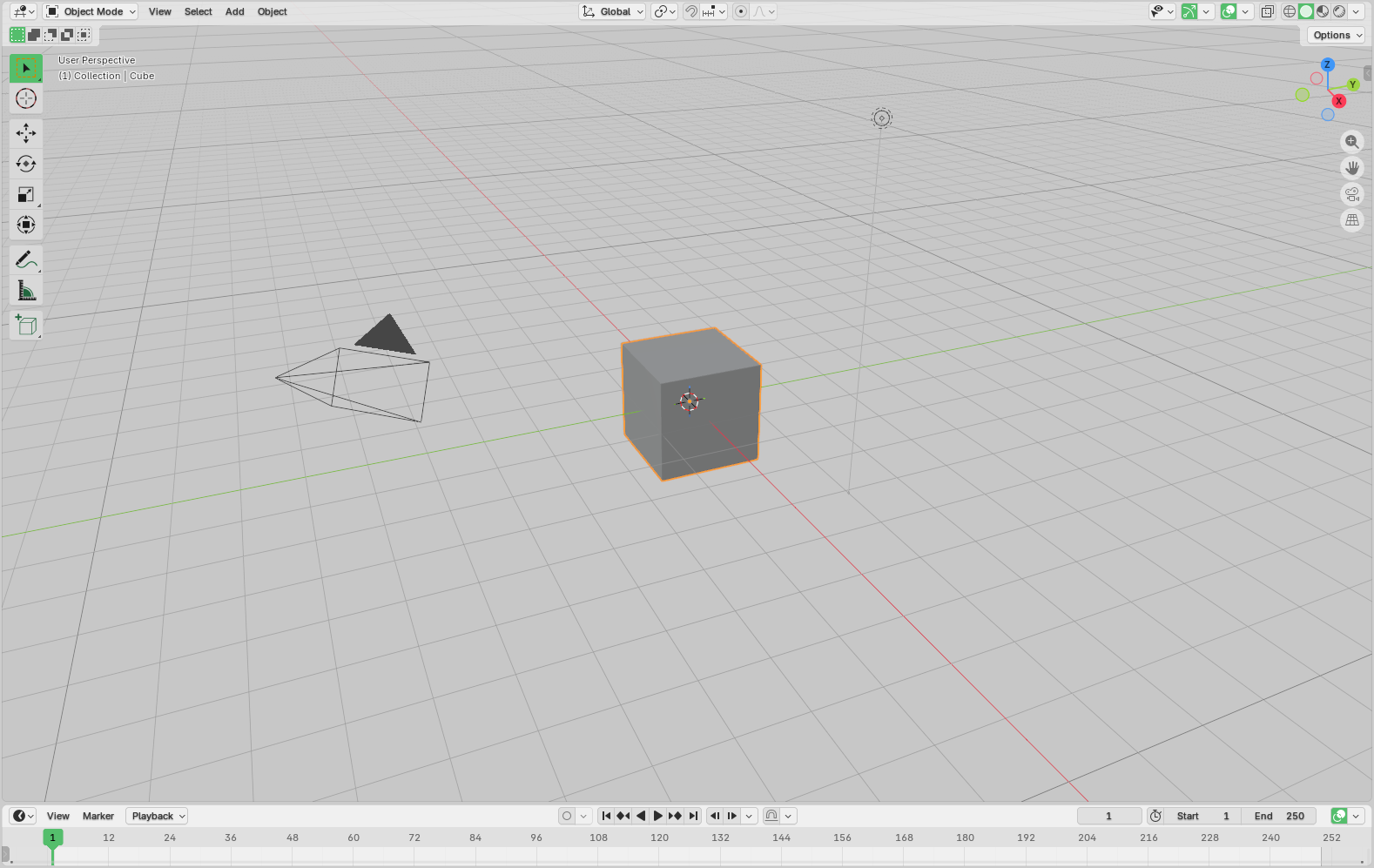
Open Blender and switch to the Scripting workspace from the top tab bar. You will see the Python console on the left and the Text Editor on the right. Write your code in the Text Editor and run it with Alt+P.
You can also use an addon to keep the script persistent.
Instead of building a full render pipeline tool, we'll start with something small to understand the main pattern: a minimal handler that fires the moment a render finishes and writes a timestamped confirmation to a file. It's a useful starting point for verifying that your handler is working correctly before building out more complex post-render logic:
import bpy
from datetime import datetime

@bpy.app.handlers.persistent
def on_render_complete(scene, depsgraph):
    timestamp = datetime.now().strftime("%Y%m%d_%H%M%S")
    open("test.txt", "w").write(f"Completed: {timestamp}\n")

bpy.app.handlers.render_complete.append(on_render_complete)
The @bpy.app.handlers.persistent decorator keeps the handler registered across file loads, so it survives scene changes during a session.
On render complete, datetime.now() captures the finish time and formats it as a compact timestamp string. That string is written directly to a hardcoded path, overwriting the file on each render.
Lastly, bpy.app.handlers.render_complete.append registers the function so Blender calls it automatically when a render finishes.
To test this without waiting for a full render, use Render Single Frame and then check that test.txt exists at the target path and contains the expected timestamp.
You can then extend the handler to copy output files, record scene metadata, or trigger downstream workflows.
The pattern is always the same as in the example: define a function, optionally decorate it with @bpy.app.handlers.persistent, then append it to the relevant list.
2. Modal Operators
app.handlers cannot help you when the task involves responding to what an artist is actively doing in the viewport. You need a modal operator instead.
The use case here is a one-click camera framer: an artist clicks an object and the active camera repositions and reframes to a studio-standard composition. No manual camera adjustment and no guessing at focal length, so no inconsistency between artists.
A modal operator is a class with two key methods:
invoke()starts the operator and registers it with the window manager.modal()receives every event that occurs after that and decides what to do with it. The operator stays active and keeps receiving events until it returnsFINISHEDorCANCELLED.
import bpy

class AutoFrameOperator(bpy.types.Operator):
    bl_idname = "studio.auto_frame"
    bl_label = "Auto Frame Selected"

    def invoke(self, context, event):
        context.window_manager.modal_handler_add(self)
        return {'RUNNING_MODAL'}

    def modal(self, context, event):
        if event.type == 'LEFTMOUSE' and event.value == 'PRESS':
            target = context.active_object
            if target:
                self.frame_camera_to(context, target)
            return {'FINISHED'}

        if event.type in {'RIGHTMOUSE', 'ESC'}:
            return {'CANCELLED'}

        return {'RUNNING_MODAL'}

    def frame_camera_to(self, context, target):
        camera = context.scene.camera
        if not camera:
            return
        focal_length = 85
        camera.data.lens = focal_length

        print(f"Framed camera on: {target.name}")

def register():
    bpy.utils.register_class(AutoFrameOperator)

def unregister():
    bpy.utils.unregister_class(AutoFrameOperator)
We define a Blender operator called AutoFrameOperator, a reusable action that Blender exposes under the ID studio.auto_frame. When triggered, invoke registers it as a modal handler, meaning it stays active and listens for user input rather than executing immediately.
The modal method is the event loop that runs on every interaction. A left click grabs the currently active object and passes it to frame_camera_to, then exits. Right-click or Escape cancels cleanly, and anything else keeps the operator waiting.
The RUNNING_MODAL return value is what keeps the operator alive and listening. Any event that does not match a condition you handle should return RUNNING_MODAL so the operator stays active. Returning PASS_THROUGH instead tells Blender to process the event normally in addition to passing it to your operator, which is useful when you want the artist to still be able to navigate the viewport while the operator is running.
frame_camera_to is the core logic. It retrieves the scene's active camera and sets its focal length to 85mm, though the actual math to reposition the camera and properly frame the target object isn't implemented as it's out of the scope of this article.
register and unregister are standard Blender add-on boilerplate that make the operator available when the script loads and remove it cleanly when it unloads.
To invoke the operator after installing the script as an addon, we open the search menu with F3 and type "Auto Frame Selected". To bind it to a shortcut, we can simply add the following snippet inside the register() function:
wm = bpy.context.window_manager
kc = wm.keyconfigs.addon
if kc:
    km = kc.keymaps.new(name='3D View', space_type='VIEW_3D')
    kmi = km.keymap_items.new("studio.auto_frame", type='F', value='PRESS', ctrl=True)
It's important to namespace your shortcuts carefully. Ctrl+F in the 3D viewport has no default binding in Blender, but check against your studio's existing configuration before deploying. A shortcut conflict that silently overrides a default Blender action is hard to debug and will frustrate your artists.
One more rule to follow: keep the modal() method lean. Heavy computation inside modal() runs on every single event, which means every mouse movement. If your framing logic is expensive, offload it to a separate method and only call it when the relevant event fires, as shown above with frame_camera_to.
Conclusion
You now have two examples of tools that address real studio problems without adding steps to your artists' workflow.
The render handler can remove a manual, error-prone handoff from your pipeline entirely. And the modal operator gives artists a consistent, one-click way to frame a camera to your studio standard.
The same patterns extend further. A load_post handler could enforce naming conventions the moment a file opens. A depsgraph_update_post handler might flag objects that violate your scene budget. A render complete handler can fire an HTTP request to a webhook and post a Slack notification to your production channel when a shot is done.
The event system is already there: you just have to start listening!