
It's late in production, the schedule is tight, and you need to roll out a critical pipeline tool on a new machine—something to sync shot statuses, publish playblasts, or automate a Kitsu workflow. The tool itself isn't complicated. It's just Python. You already wrote it.
The problem is everything around it.
The machine you're deploying to doesn't have Python installed. Or it has the wrong version. The studio's Linux server is locked down. A freelancer's Windows box can't compile dependencies. Someone asks whether they need pip, a virtual environment, or the Gazu SDK. Suddenly, a "simple script" turns into documentation, troubleshooting, and lost time.
Instead of building pipeline tools, you're managing environments.
This is the part no one enjoys: installing Python, pinning versions, chasing missing libraries, and hoping nothing breaks when the OS updates. And when your tool needs to run on artist workstations, render nodes, or CI servers, that fragility becomes a real production risk.
What you actually want is simple: one tool, one command, that just runs.
In this article, you'll learn how to package your Kitsu workflows by wrapping the Kitsu Python SDK (Gazu) into a Command Line Interface (CLI) and compiling it into a single binary executable. No Python installs. No dependency management. Just a reliable executable you can drop onto any machine and use immediately.
Why You Need a CLI
GUIs are great for creative work, but once you're dealing with pipeline management, a web UI can quickly become a burden. When you move the right Kitsu tasks into a CLI, you unlock a faster, more scalable, and more automation-friendly way of working.
You finish animating five shots and need to update their status and upload previews. In a browser, that means context-switching: Alt-Tab, open Chrome, navigate to Kitsu, drill into the project, find the episode, click the shot, change the status, upload the movie. Then repeat the whole process for every shot. With a CLI, you stay exactly where you are. You type kitsu publish --status Review, hit Enter, and move on. You never leave the keyboard, you never break focus, and you don't pay the cognitive tax of clicking through menus.
A CLI naturally pushes you toward thinking in arguments, lists, and automation, and that's where it starts to compound. If you can update one shot, you can update ten or a hundred using the exact same command. You can loop over a sequence, pipe in shot names, or drive the operation directly from a DCC or render output. What would be an hour of repetitive clicking in a web UI becomes a few seconds of scripted work. And it's consistent, repeatable, and easy to version-control.
Lastly, not everything in a pipeline runs on a workstation with a monitor. Sometimes tasks need to happen on a render farm node, a build server, or a background process reacting to files on disk. In those environments, there is no browser and no user to click buttons. A CLI works anywhere you have a shell. You can automate publishes, status changes, validations, and sync operations, and Kitsu gets integrated deeper into the pipeline.
You can find the complete source code for the example integration showcased in this guide on our GitHub:
🔗 https://github.com/cgwire/blog-tutorials/tree/main/kitsu-cli
1. Designing the CLI Interface
Before we touch the Kitsu API, we need the skeleton of our tool. In Python, there are several ways to parse command-line arguments, but for a professional pipeline tool, I highly recommend using libraries like Click or Typer.
For this walkthrough, let's conceptualize a tool called kitsu-cli.
Think of your tool like a tree. The trunk is the main executable, and the branches are your commands and subcommands:
kitsu-cli (root)
└── production (commands related to productions)
    └── list (list all productions)
Here is how you structure this logic in Python using Click. This structure is crucial because it allows your tool to be extendable. Today you are managing productions; tomorrow you might be managing assets or playlists.
import click

@click.group()
def cli():
    """My Studio Kitsu Tool"""
    pass

@cli.group()
def production():
    """Commands for managing productions"""
    pass

@production.command()
@click.option('--name', help='Filter by name')
def list(name):
    """List productions"""
    click.echo(f"Listing productions: {name}")

if __name__ == '__main__':
    cli()
This snippet alone gives you a help menu for free. If the user types kit-cli --help, they see the documentation. This is developer empathy, building tools that teach the user how to use them.
To run the CLI, you just use the same command as a regular Python program:
python3 cli.py production list
2. Adding Gazu Features
Now that we have the skeleton, we need the muscle. Kitsu provides a fantastic Python client called Gazu.
If you haven't used Gazu before, it is the bridge between your script and your Kitsu server.
The first hurdle in any pipeline tool is authentication. You do not want your artists hard-coding their passwords into scripts. A robust CLI checks if a session already exists. If not, it prompts the user to log in once and saves the token locally. For the sake of simplicity, we'll just hardcode our authentication logic:
import gazu

gazu.set_host("http://localhost/api")
user = gazu.log_in("admin@example.com", "mysecretpassword")
Once authenticated, we can flesh out that list command we wrote earlier. To list productions:
@production.command()
@click.option('--name', help='Filter by name')
def list(name):
    """List productions"""
    click.echo(f"Listing productions: {name}")
No need to open a browser, wait for the Vue app to load, and filter the view. This script returns raw data instantly.
3. Interactive Interface
While command flags (like --name test) are great, it would be a much better experience to pick productions from an interactive list.
Instead of forcing the user to type the exact name of a sequence (which they will inevitably misspell), we can make our CLI smarter by adding prompts. If the user forgets to supply an argument, you just ask them for it.
A library like questionary is great for this because it adds self-documented, interactive selection lists to the terminal.
import questionary

@production.command()
def select():
    """List available productions"""
    productions = gazu.project.all_projects()

    selected_project = questionary.select(
        "Which project are you working on?", choices=productions
    ).ask()

    click.echo(f"You selected {selected_project}. Loading assets...")
This tiny addition changes the user experience from "scary hacker tool" to "helpful assistant." It reduces error rates to near zero because the user can only select valid options retrieved directly from Kitsu.
4. The Single Executable Binary
Last but not least, we need to solve the "It doesn't work on my laptop" problem. We have a Python script with dependencies:gazu, click, questionary, etc.
To run this on a freelancer's machine, they would normally need to install Python, or maybe create a virtual environment, and pip install the requirements. To eliminate all those steps, we can use PyInstaller.
python3 -m pip install pyinstaller
PyInstaller analyzes your Python script, finds every library you imported, bundles the Python interpreter itself, and wraps it all into a single .exe file (on Windows) or target binary (on Linux/Mac).
Navigate to your script's folder in your terminal and run:
python3 -m PyInstaller --onefile --name kitsu-cli cli.py
--onefile: This flag tells PyInstaller to bundle everything into a single file, rather than a folder of loose dependencies.--name: The name of your final binary file.
After the process finishes, check the dist/ folder. You will find a file named kitsu-cli (or kitsu-cli.exe).
You can now take this file, put it on a USB drive, email it, or put it on a network drive. An artist can drag it to their desktop and run it as long as it's compiled on the same OS architecture (macOS, Windows, etc.). They do not need Python installed. They do not need to install Gazu manually. It just works:
./kitsu-cli production list
But don't take my word for it, try it out yourself by cloning our Github repository.
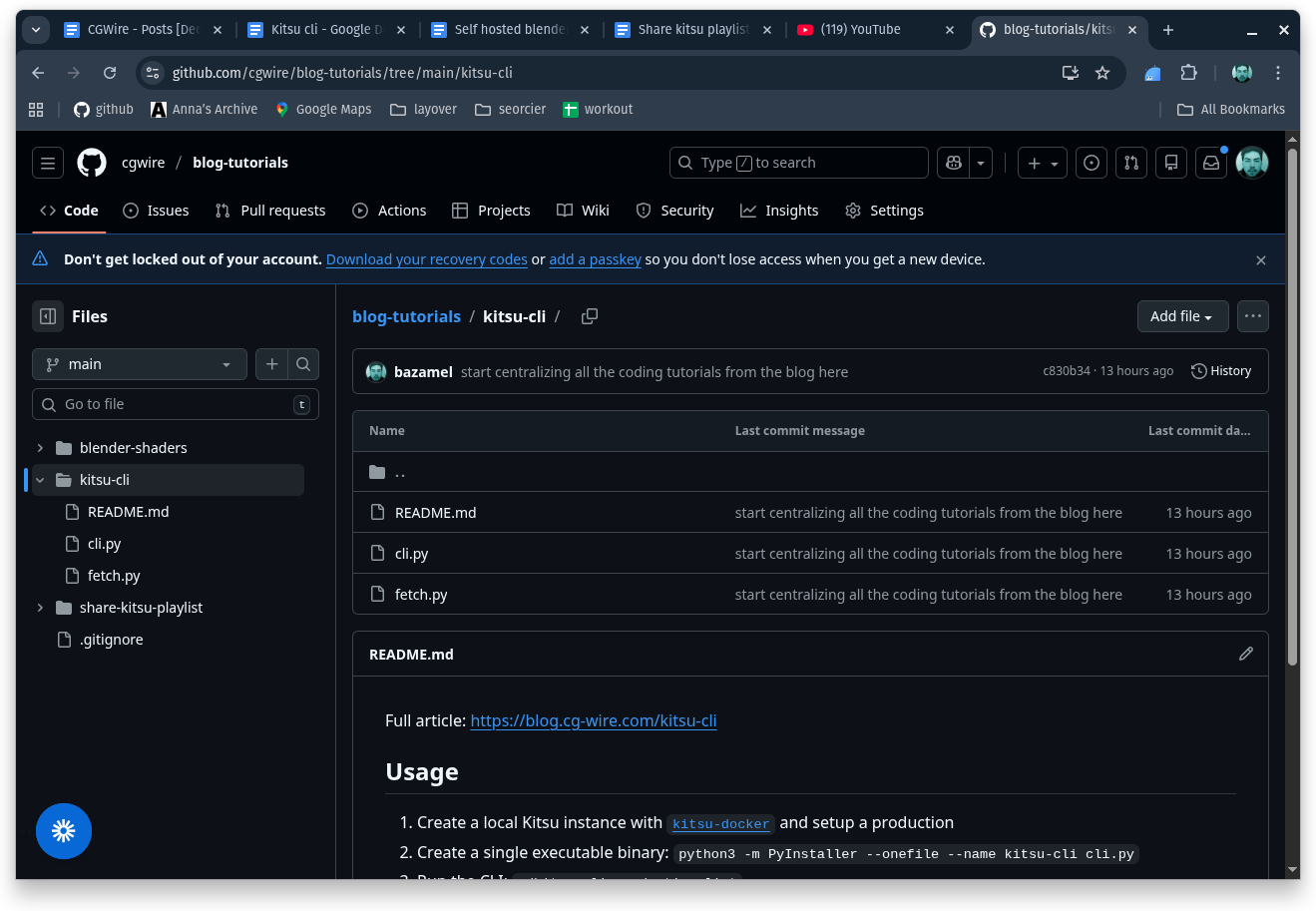
If you need to cross-compile your CLI to different OS targets, you can use Github Actions.
CLI Example: The "Render Fetcher"
Let's switch to a more pipeline-centric scenario.
Picture a workflow where you're managing distributed rendering across multiple machines. Each render node needs to regularly pull new work from Kitsu: shots marked TODO for rendering, along with their corresponding preview .blend files. These machines are headless, locked down, and deliberately minimal—no Python installs, no virtual environments, no dependency juggling.
What you want is a single executable you can drop onto any server and run as a cron job or service:
./kitsu-cli pull MechaFight /home/user/flamenco/jobs
The corresponding code would look like this:
import os

import click
import gazu
import questionary

gazu.set_host("http://localhost/api")
user = gazu.log_in("admin@example.com", "mysecretpassword")


@click.group()
def cli():
    """My Studio Kitsu Tool"""
    pass


@cli.command()
@click.argument("project_name", required=True)
@click.argument("output_path", required=True)
def pull(project_name, output_path):
    click.echo(f"Fetching TODO render tasks for project: {project_name}")

    project = gazu.project.get_project_by_name(project_name)

    tasks = gazu.task.all_tasks_for_project(project)

    rendering = gazu.task.get_task_type_by_name("Rendering")
    todo = gazu.task.get_task_status_by_name("todo")

    render_tasks = [
        t
        for t in tasks
        if t["task_type_id"] == rendering["id"] and t["task_status_id"] == todo["id"]
    ]

    for task in render_tasks:
        files = gazu.files.get_all_preview_files_for_task(task)
        size = len(files)

        if size > 0:
            latest = files[size - 1]
            if latest["extension"] == "blend":
                target_path = os.path.join(
                    output_path, latest["name"] + "." + latest["extension"]
                )
                gazu.files.download_preview_file(latest, target_path)


if __name__ == "__main__":
    cli()
- Query Kitsu - The CLI connects to Kitsu (via Gazu) and retrieves all rendering tasks with a TODO status for a given project.
- Filter tasks - It filters tasks that are marked
todoand have an associated preview file (in this case, a.blendfile). - Download assets - For each task, the CLI downloads the corresponding preview
.blendfile to the specified output path on disk. - Render - Once downloaded, the files are ready for Blender to pick up, manually or via an automated render orchestrator like Flamenco.
When this CLI is compiled into a single binary, it becomes trivial to deploy. You can drop it onto Linux render nodes and run it from cron or systemd without installing Python or dependencies. Every server pulls work the same way. Folder structures are consistent. Task state comes straight from Kitsu. And your render farm stays focused on rendering.
Again, check it out in the corresponding Github repository.
Conclusion
Creating your own Kitsu CLI doesn't have to be complex. By wrapping the Gazu library in a user-friendly CLI and freezing it with PyInstaller, you scale your pipeline. You remove the technical friction of environment management and let your artists focus on what they do best: creating beautiful animations.
Learn more about combining Kitsu and Blender scripting by subscribing to our blog!